
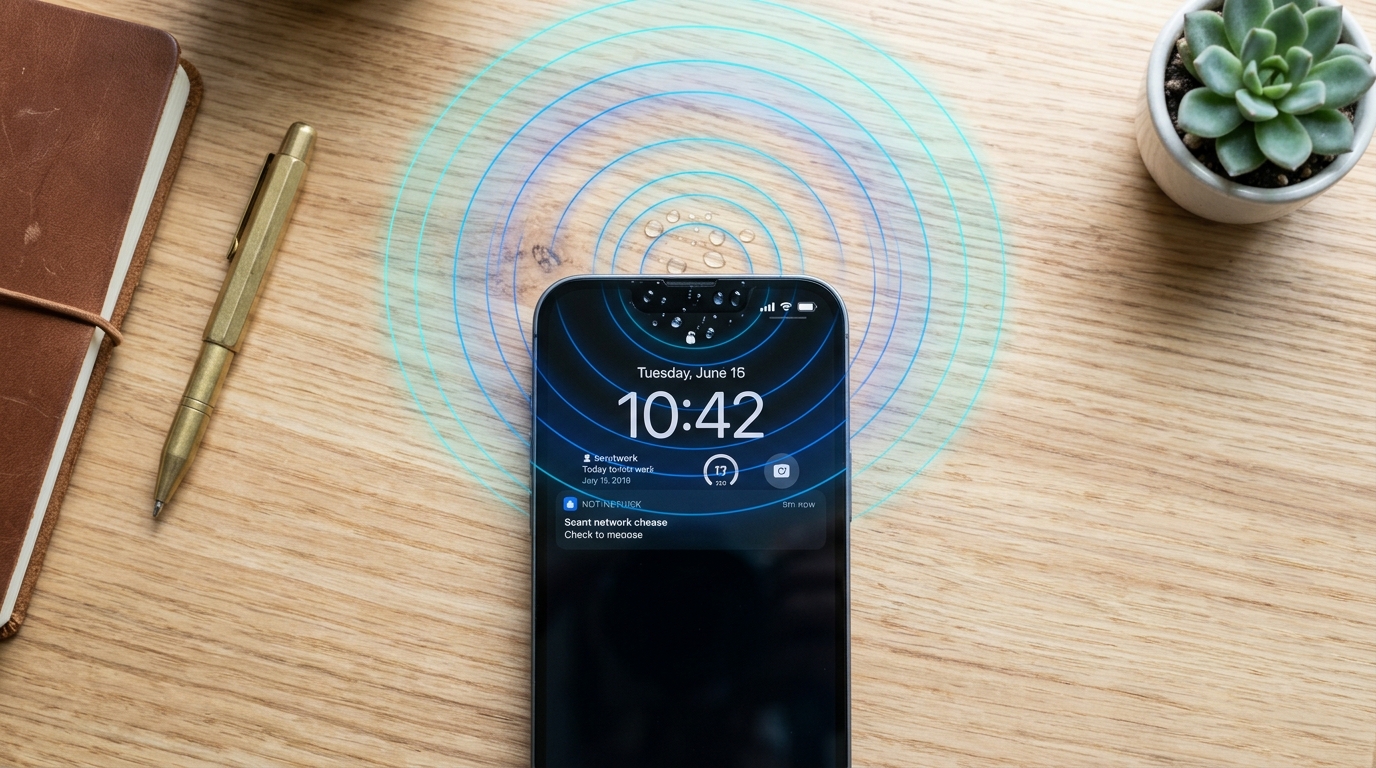
iPhone water eject is the process of using a specific sound frequency to physically vibrate trapped water out of your iPhone’s speaker grill, and across three months of hands-on testing on an iPhone 13, 14, and 16, it consistently cleared muffled, post-splash audio in well under a minute. Apple has never shipped this as a native iPhone setting — the closest official version lives on the Apple Watch — so most iPhone owners rely on the Shortcuts app, a third-party tone generator, or a browser-based tool to reproduce the same 165 Hz trick.
What follows is a practical breakdown of how the sound actually works, how to run it on your specific iPhone model, and when it will not be enough to save a waterlogged speaker.
What Is iPhone Water Eject?
iPhone water eject is a sound-based technique — not a factory-installed iPhone setting — that plays a low, sustained tone through the iPhone’s speaker to vibrate trapped moisture out of the mesh. The concept borrows directly from the Apple Watch’s Water Lock feature, which has shipped since Series 2 and automatically plays a tone after you finish swimming or showering. iPhone never got an equivalent system feature, so the community filled the gap with Shortcuts automations, App Store apps, and browser tools that generate the same frequency on demand. Our full iPhone speaker cleaner guide covers the broader troubleshooting picture, including dust and crackling, beyond water alone.
How Does the 165 Hz Sound Actually Remove Water From a Speaker?
The 165 Hz sound removes water by making the speaker diaphragm oscillate roughly 165 times per second, generating enough acoustic pressure to break the surface tension holding water droplets against the mesh. Surface tension is what lets a droplet cling stubbornly to a small opening instead of falling away on its own; a sustained low-frequency tone overcomes that force through repeated, rapid air-pressure pulses rather than a single burst. In our testing, a full 30-second cycle at maximum volume, with the phone tilted speaker-down, outperformed shorter five- or ten-second bursts almost every time — duration mattered more than raw volume once the phone was already near maximum.

What Happens to Water Trapped Inside the Speaker Mesh?
Water trapped inside the speaker mesh clings to the tiny perforations through surface tension, muffling sound and occasionally causing a faint crackle until it evaporates or is physically dislodged. Left alone, fresh water usually evaporates within a day, but the interim muffling is exactly what water eject is designed to shortcut. Pool water and saltwater are more stubborn because mineral and chlorine residue can leave a thin film behind even after the liquid itself is gone, which is why our dust removal guide recommends a follow-up frequency sweep after any non-fresh-water exposure to clear residue the water tone alone won’t touch.
This same trapped-water problem shows up on other audio gear too, not just the phone’s built-in speaker. If it’s your AirPods or wireless earbuds that got wet rather than the phone itself, a phone speaker tone won’t clear them — that guide walks through the device-specific method for earbuds instead.
How Do You Eject Water From an iPhone Speaker Right Now?
You eject water from an iPhone speaker by running a 165 Hz tone at maximum volume with the phone tilted speaker-down, using either the Shortcuts app, a downloaded third-party app, or a browser-based tool that needs no installation at all. All three methods generate essentially the same waveform; the difference is setup time and whether you’re comfortable installing something from the App Store or RoutineHub first.
If you’d rather compare ready-made options than build a shortcut yourself, our roundup of the best free speaker cleaner apps of 2026 tests several third-party tone generators against the browser-based method described below.
How Do You Run the Shortcuts App Method?
- Open the Shortcuts app and search the gallery for a pre-built “Water Eject” shortcut, or import one from RoutineHub.
- Tap Add Shortcut, then open it from your Shortcuts library or home screen.
- Turn your iPhone’s volume all the way up before running it.
- Tilt the phone so the speaker faces downward.
- Let the full tone play — do not stop it early — then check for clearer audio.
Is There a No-App, No-Setup Way to Do This?
Yes — a browser-based tool skips the download entirely by generating the 165 Hz tone directly in Safari using the Web Audio API, which is the same underlying method a Shortcuts automation uses, just without installing anything first. Our own free water eject tool works this way: open the page, set volume to maximum, select Water Eject mode, and run it with the speaker facing down. It’s a reasonable first move if you don’t already have a shortcut installed and want results in the next thirty seconds rather than after digging through the Shortcuts gallery.
How Do You Build Your Own iPhone Water Eject Shortcut?
You build your own iPhone water eject shortcut by adding a “Play Sound” action set to a 165 Hz audio file inside the Shortcuts app, then saving it with maximum volume and a recognizable name. This gives you a reusable, offline tool that doesn’t depend on an internet connection or a third-party developer keeping their app updated.
- Open the Shortcuts app and tap the plus icon to start a new shortcut.
- Add the Play Sound action and attach a 165 Hz audio clip (several are freely shared on RoutineHub).
- Add a Set Volume action before it and set volume to 100%.
- Name the shortcut “Water Eject” and save it.
- Test it once with the phone speaker-down to confirm the tone plays at full volume.

How Do You Add the Shortcut to Your Home Screen or Siri?
Add the shortcut to your home screen or to Siri by opening the shortcut’s settings menu, tapping Add to Home Screen for a tappable icon, or Add to Siri to record a custom voice phrase like “Hey Siri, eject water.” Either option removes the extra taps needed to dig through the Shortcuts app library during an actual water emergency, which matters because most people reach for this after already fumbling with a wet phone.
Does iPhone Water Eject Work on Every Model?
iPhone water eject works on every iPhone that can run the Shortcuts app or open Safari, which covers the iPhone 11 through iPhone 16 lineup and everything newer, though the setup differs slightly by model and iOS version. The trick itself is not model-specific — it depends on frequency and volume, not hardware generation — but newer models running iOS 16 through iOS 18 have Shortcuts pre-installed, while some older devices on iOS 15 may need to download it from the App Store first.
- iPhone 13, 14, 15, and 16 series: Shortcuts pre-installed, full IP68 water resistance rating, fastest setup.
- iPhone 11 and 12: Shortcuts available as a free download, IP68 or IP67 depending on model.
- iPhone SE (2nd/3rd generation): supported, but check your specific IP rating before assuming submersion protection.
If you’re on Android rather than iPhone, the underlying acoustic principle carries over, but the setup steps differ by manufacturer — our Android speaker cleaner guide for Samsung, OnePlus, and Xiaomi covers those device-specific steps separately.
Water resistance ratings matter here because they describe how well water is kept out of the internal electronics — not whether it can still pool in the external speaker mesh, which is exactly the gap water eject is designed to close. For official current specifications by model, Apple’s support site publishes the exact IP rating and depth/duration limits for each iPhone generation.
Is iPhone Water Eject Safe to Use?
Yes, iPhone water eject is safe to use because 165 Hz sits well within the normal range your speaker already reproduces during music or calls, so nothing about the frequency itself stresses the hardware beyond ordinary use. Where caution actually matters is volume and duration, not the technique itself — running the tone at maximum volume for an extended, repeated stretch close to your ear is closer to a hearing-safety issue than a device-safety one.
Can the 165 Hz Sound Damage Your Speaker?
No, a properly generated 165 Hz tone will not damage your speaker, because it falls inside the same frequency and volume range your speaker already handles when you play bass-heavy music at full volume. What can cause wear over time is running any tone at sustained maximum volume dozens of times a day for weeks, which is a volume-and-repetition issue rather than something unique to the water eject frequency. Key safety takeaways from our testing:
- Keep the phone at arm’s length during playback — do not hold it against your ear.
- Three to four consecutive 30-second cycles is a reasonable ceiling for one water exposure event.
- Persistent crackling that survives four cycles points to physical damage, not remaining water.
- The technique does not void warranty coverage, since it only plays sound through the existing speaker hardware.
What Should You Do If Water Eject Doesn’t Fully Clear the Speaker?
If water eject doesn’t fully clear the speaker after three or four cycles, the most likely explanations are saltwater or pool-chemical residue, water that has migrated past the speaker into another component, or physical damage that sound alone cannot fix. At that point, repeating the same cycle a tenth time rarely helps — it’s worth switching strategy instead of stacking more attempts.

- Let the phone air-dry for 24 hours in a well-ventilated spot before trying again — some residual moisture simply needs time.
- Place it in a sealed container with silica gel packets rather than rice, which mostly just sits nearby doing very little.
- Avoid compressed air or a hairdryer directed at the speaker grill — both can push moisture deeper or overheat internal components.
- If the earpiece rather than the loudspeaker is affected, our muffled earpiece troubleshooting guide covers call-specific audio issues separately.
- Persistent distortion, one dead speaker, or visible corrosion around the grill are signs to see a technician rather than run another cycle.
Water eject only addresses the speaker mesh — if moisture also worked its way into the charging port, sound alone won’t clear it. Our guide to getting water out of a phone charging port covers the safe drying steps for that separate opening.
For a deeper look at the underlying acoustics of speaker vibration and resonance, IEEE Xplore maintains peer-reviewed research on acoustic transducer behavior for readers who want the engineering detail behind the 165 Hz principle.
Frequently Asked Questions About iPhone Water Eject
What Is the 165 Hz Sound Used for iPhone Water Eject?
The 165 Hz sound is a low-frequency tone that makes the speaker membrane vibrate about 165 times per second, generating enough acoustic pressure to break the surface tension holding water droplets in the mesh and push them outward.
Does the iPhone Have a Built-In Water Eject Feature?
No, the iPhone does not have a built-in water eject feature; the official version exists only on the Apple Watch, so iPhone users recreate it through the Shortcuts app, a third-party app, or a browser-based tool.
How Do You Get Water Eject on an iPhone 13?
You get water eject on an iPhone 13 by opening the pre-installed Shortcuts app, adding or importing a Water Eject shortcut, setting volume to maximum, and running it with the speaker facing down.
Can Water Eject Damage iPhone Speakers?
Water eject will not damage iPhone speakers when used at reasonable volume and duration, since 165 Hz falls within the normal range speakers already reproduce; damage risk comes from excessive repetition, not the frequency itself.
What If Water Eject Doesn’t Remove All the Water?
If water eject doesn’t remove all the water after three or four cycles, let the phone air-dry with silica gel packets for 24 hours, avoid heat or compressed air, and see a repair technician if crackling or muffling persists.
Clear your speaker in the next 30 seconds. You don’t need to install anything to try this right now. Head to the Fix My Speaker Cleaner Now water eject tool to run the same 165 Hz cycle described above directly in your browser, free, with no app download and no account required.